Seismic
/app/seismic
View the project's seismic volumes and partial-stack groups as a map along a horizon and as the inline and crossline sections through one position, and run SpeQ-AVO and Inversion-AVO over them. The screen has two tabs over one selection: View, where the map and the two sections share the display area, and Inversion, where the same displays sit beside the run settings and the results on the selected horizon. Volumes and horizons enter the project through the data popup, in four steps: Seismic data, Horizons, Upload and Project data. Project data lists every volume, group and horizon in the project with its state; from there each can be shown or deleted, and Delete all data removes everything seismic in the project.
Some controls appear only when there is something for them to act on: the attribute pills need a horizon on the selected volume or group, and the coefficient overlay needs a finished SpeQ-AVO result on the member in view. A depth volume can be viewed but takes no horizon and no run.
Menu row
The row above the displays. It chooses what every display shows: the volume or group, the member, the horizon and the position by line number.

| Field | Purpose | Range | Default |
|---|---|---|---|
| Data | Opens the data popup: View lists what the project holds, Add starts adding volumes and horizon exports. | — | — |
| dataset | The volume or partial-stack group the displays and the run work on. When the screen opens it picks a converted time volume or group, one with a horizon where there is one. | — | — |
| Stack | Which member of a partial-stack group the sections show, by its stack label. A full-stack volume has one stack, so the choice is fixed. Over a SpeQ-AVO result made per member, it also names the member whose coefficients are drawn. | up to 40 characters lowercase letters and digits, with single hyphens between words | full |
| Horizon | The horizon the map shows an attribute along and every run is made over. Only horizons imported onto the selected volume or group are offered. |
36 to 36 characters
^[0-9a-f]{8}-[0-9a-f]{4}-[0-9a-f]{4}-[0-9a-f]{4}-[0-9a-f]{12}$
|
— |
| Inline line | The inline the position stands on, by its survey line number. A typed number moves to the nearest line the survey has once Enter is pressed or the field is left; the arrows step one line at a time. Its range is the survey's own inline numbers, not a limit of the app. | 1720 to 1988app | 1854 |
| Crossline line | The crossline the position stands on, by its survey line number. It behaves as the inline field does. Its range is the survey's own crossline numbers. | 898 to 1458app | 1178 |
Limits are the API's unless marked app. The app may offer a narrower range.
Map
The selected horizon seen from above, coloured by one attribute, with the two lines through the position drawn with their end marks. Clicking the map moves the position. With no horizon the map shows the survey outline only.
| Field | Purpose | Range | Default |
|---|---|---|---|
| map-attribute | Which attribute the map shows: one read along the horizon, such as the amplitude or the horizon's two-way time, or an inverted attribute of a finished run on this horizon. Choosing a result on the Inversion tab puts its first attribute here. | — | — |
Limits are the API's unless marked app. The app may offer a narrower range.
Section display
The section in the large place, with the selected horizon and the crossing line of the position marked on it. Clicking a small section brings it into the large place.

| Field | Purpose | Range | Default |
|---|---|---|---|
| show-coefficients | Draws the coefficients of a finished SpeQ-AVO result over the section. It is offered only when such a result covers the member in view. | — | — |
| show-wells | Draws the well logs placed on this volume over the section: each well's path where it passes within three lines of the section, and its chosen curve as a track beside it. | — | — |
| well-curve | Which log curve is drawn beside each well's path, from the curves of the wells on the section; GR when there is one. | — | — |
| Gain | How trace amplitudes are balanced before display: none, a time-power gain, automatic gain control, per-trace normalisation, a fixed scale or a bias. | — | None |
| p | Exponent of the time-power gain. Higher values boost late arrivals more strongly. | 0 to 5app | 2 |
| win | Length of the automatic gain control window in seconds. Shorter windows equalise amplitudes more aggressively. | 0.01 to 2 sapp | 0.5 s |
| Gain scale | Factor every amplitude is multiplied by before display. | — | 2 |
| Gain bias | Constant added to every amplitude before display, shifting the image towards positive or negative. | — | 0 |
| Max Amplitude | Amplitude at which the colour scale saturates. Lower values bring out weak reflectors; higher values preserve the strongest events. | — | — |
| Clip | Percentile of the amplitude distribution used to set the clip. Lower percentiles clip more of the strongest samples. | 90 to 100 %app | 99 % |
| coefficient-reveal | Drag the handle across the section to reveal the SpeQ-AVO coefficient overlay on top of the amplitude image. | — | — |
Limits are the API's unless marked app. The app may offer a narrower range.
3D view
Opened with the 3D view button: three planes through the volume or member in view, with the selected horizon, drawn as a box.

| Field | Purpose | Range | Default |
|---|---|---|---|
| inline position | Position of the inline plane through the volume. Release the slider to load that plane. | 0 to 268app digits only | 0 |
| crossline position | Position of the crossline plane through the volume. Release the slider to load that plane. | 0 to 560app digits only | 280 |
| time position | Position of the horizontal plane through the volume, by sample along the vertical axis. Release the slider to load that plane. | 0 to 1000app digits only | 0 |
| Show | Shows or hides one of the three planes. Hiding a plane reveals what sits behind it. | — | inline, crossline, time |
| show-horizon | Shows or hides the selected horizon surface. Hiding it exposes the reflectors it is meant to be checked against. | — | — |
| show-inset | Shows or hides the inset plotting the amplitude distribution along the horizon. | — | — |
| Vertical exaggeration | Stretches or squashes the vertical axis of the volume relative to the bin spacing. Higher values make gentle structure easier to see. | -2 to 2app | -1 |
Limits are the API's unless marked app. The app may offer a narrower range.
Seismic data
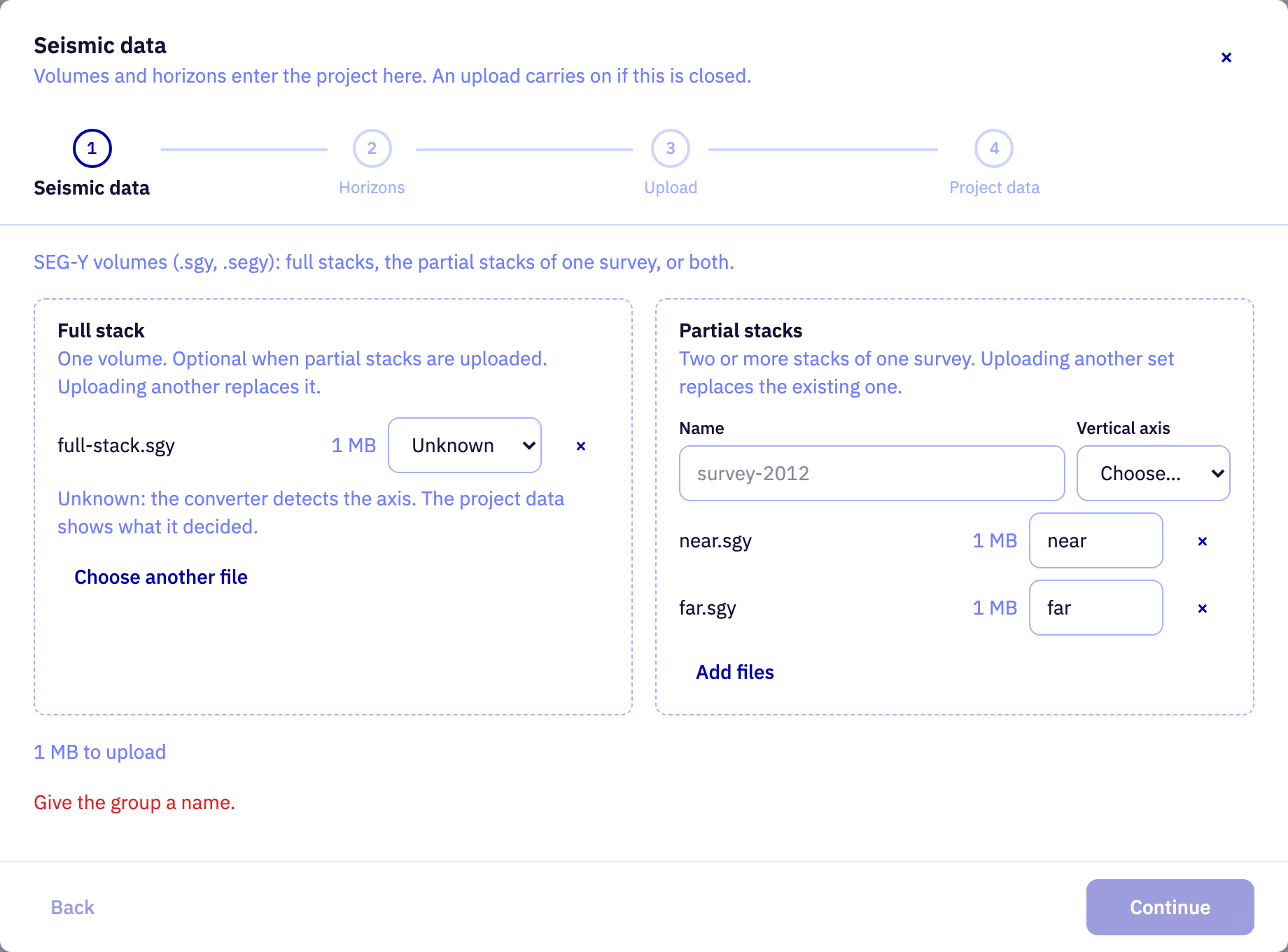
The first step of the data popup, opened from Add in the Data menu or the Add data button. Choose a full-stack file, the partial stacks of one survey, or both. Each file converts to a volume by itself once it has uploaded. Uploading a kind the project already holds replaces it, after a warning; the old one is deleted once the new one has converted.
| Field | Purpose | Range | Default |
|---|---|---|---|
| Full-stack SEG-Y file | The full-stack SEG-Y file to upload. A project holds one full stack; uploading another replaces it once the new one has converted. | — | — |
| Vertical axis | Whether the vertical axis of this full-stack file is time or depth. It is prefilled from the file name; leave it unknown to let the converter read it from the file. Horizons and runs need a time volume. | — | Unknown |
| Partial-stack SEG-Y files | The partial-stack SEG-Y files to upload: two or more stacks of one survey. A project holds one partial-stack group; uploading another set replaces it once the new stacks have converted. | — | — |
| Name | Name of the new partial-stack group. It is stored in lowercase letters, digits and hyphens, and the stored form is shown under the field when it differs from what was typed. | 1 to 80 characters | — |
| Vertical axis | Whether the vertical axis shared by every stack of the group is time or depth. It is prefilled when the file names agree on one, and must be chosen otherwise. | — | — |
| Stack label | This file's stack label within its group, such as near, mid or far, or an angle range. It is prefilled from the file name. Labels must be unique within the group. | up to 40 characters lowercase letters and digits, with single hyphens between words | near |
Limits are the API's unless marked app. The app may offer a narrower range.
Horizons
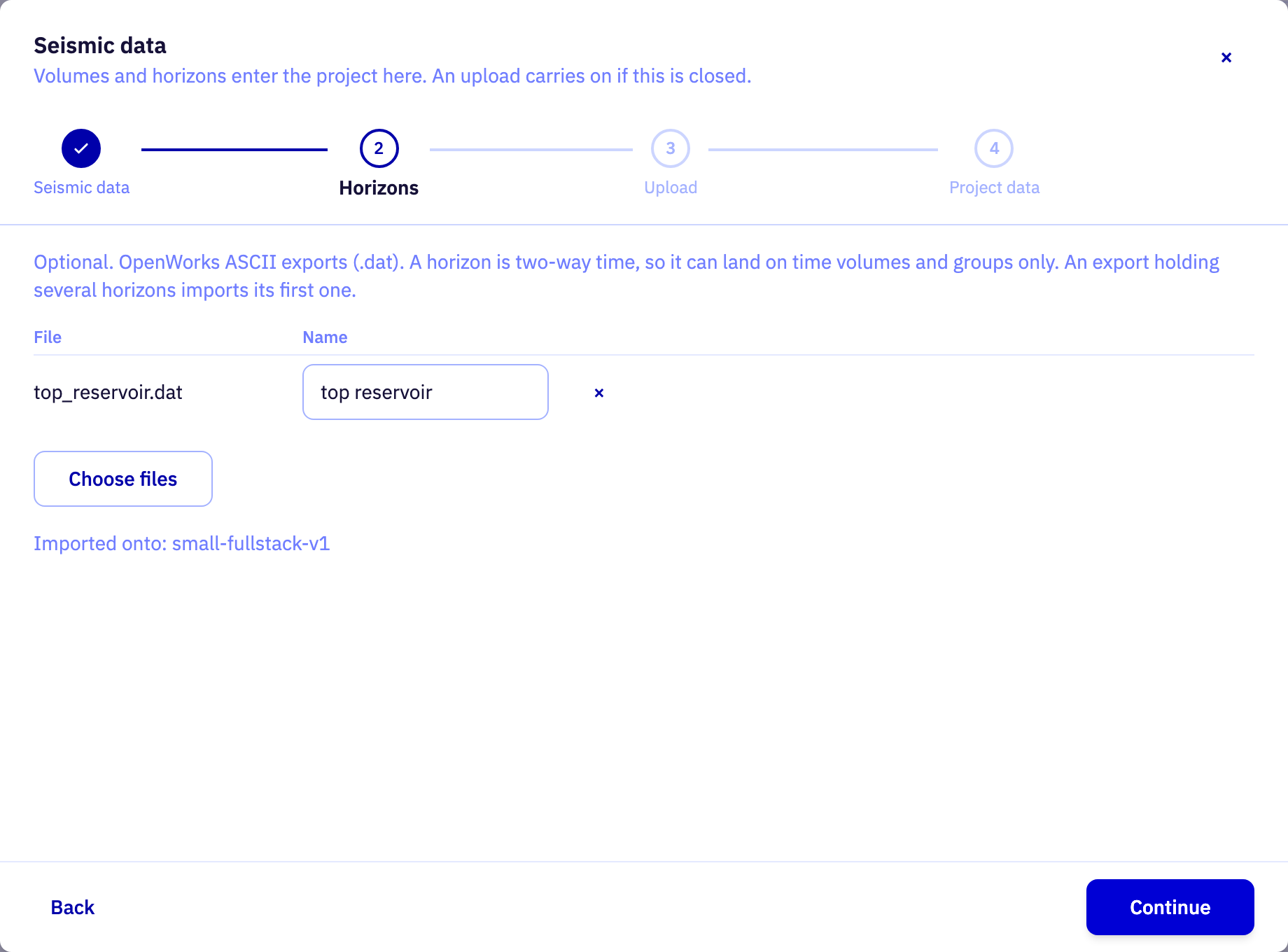
The second step of the data popup, and optional. Horizon exports are uploaded and imported onto every time volume in the project: the full stack and the partial-stack group. Depth volumes are skipped. A volume still converting gets the horizon once its conversion finishes, and horizons carry over when a volume is replaced.
| Field | Purpose | Range | Default |
|---|---|---|---|
| Horizon export files | The horizon exports to upload, as OpenWorks ASCII files. An export holding several horizons imports its first one. | — | — |
| Name | Name of the horizon. It is seeded from the file name and can be edited; a volume or group holds one horizon of each name. | 1 to 100 characters | top reservoir |
Limits are the API's unless marked app. The app may offer a narrower range.
Wells
The third step of the data popup, and optional. Well logs, each with its log data and, if it has one, its time-depth file. A well log belongs to the project, so to its full stack and its partial-stack group alike. The Upload step after it lists what will be sent and starts the upload, which runs in this browser tab and carries on if the popup is closed.
| Field | Purpose | Range | Default |
|---|---|---|---|
| well-root-folder | A root folder holding the well logs: a folder per well, named after it, with its log data (.las or .dlis) and, if it has them, its time-depth file (.asc or .txt) and well path (.json). The folder is what ties a time-depth file to its log. A folder is stored under its name with any character other than letters, digits, '.', '_' and '-' made '_', so 15/9-F-11 T2 is 15_9-F-11_T2; a well log stored under a name already in the project replaces that one, files and all. |
up to 100 characters
^[A-Za-z0-9_-][A-Za-z0-9._-]*$
|
— |
| well-folder | A single well log: one folder, named after the well, with its log data (.las or .dlis) and, if it has them, its time-depth file (.asc or .txt) and well path (.json) directly in it. Adds to the well logs already staged. A folder is stored under its name with any character other than letters, digits, '.', '_' and '-' made '_', so 15/9-F-11 T2 is 15_9-F-11_T2; a well log stored under a name already in the project replaces that one, files and all. |
up to 100 characters
^[A-Za-z0-9_-][A-Za-z0-9._-]*$
|
— |
| well-filter | Narrows the list of staged well logs to those whose folder or file names contain the text. The list draws its first 200 rows. | — | — |
Limits are the API's unless marked app. The app may offer a narrower range.
Run
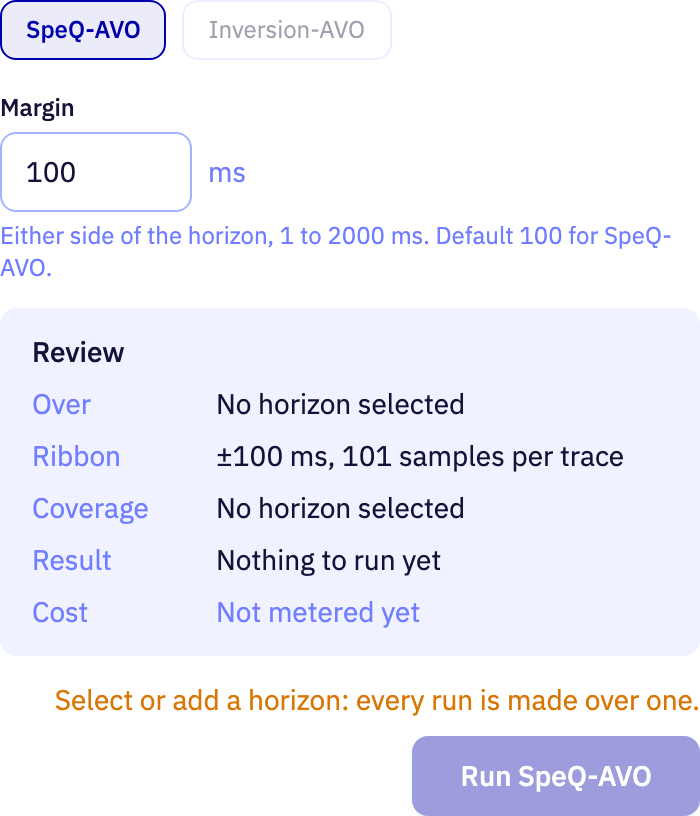
On the Inversion tab: the run over the selected volume or group and horizon, with a review of what it will make. The results on the horizon are listed under it; choosing one puts its first attribute on the map and loads its settings back, ready to run again.
| Field | Purpose | Range | Default |
|---|---|---|---|
| Product | Which product to run: SpeQ-AVO, over a volume or the members of a group, or Inversion-AVO, which compares the members of a partial-stack group. | — | SpeQ-AVO |
| stack labels | Which members of the group take part in the run. Only converted members can be ticked. | up to 40 characters, 1 to 99 values lowercase letters and digits, with single hyphens between words | — |
| stack angles deg | Inversion-AVO only: the nominal incidence angle of each member taking part, from the processing report. Every member taking part needs one, and they may not all be the same. | at least 0, under 90 deg | — |
| Margin | Half-length of the ribbon either side of the horizon. A wider margin takes in more of each trace above and below the horizon. Each product has its own default. | 1 to 2000 ms | 100 ms |
Limits are the API's unless marked app. The app may offer a narrower range.